
Thanks for your feedback!
WebP to PNG Converter – Keep Quality and Transparency
Convert WebP images to PNG to edit them, use them in design software or keep a transparent background. PNG is supported by almost every app and does not lose quality when you save it again.
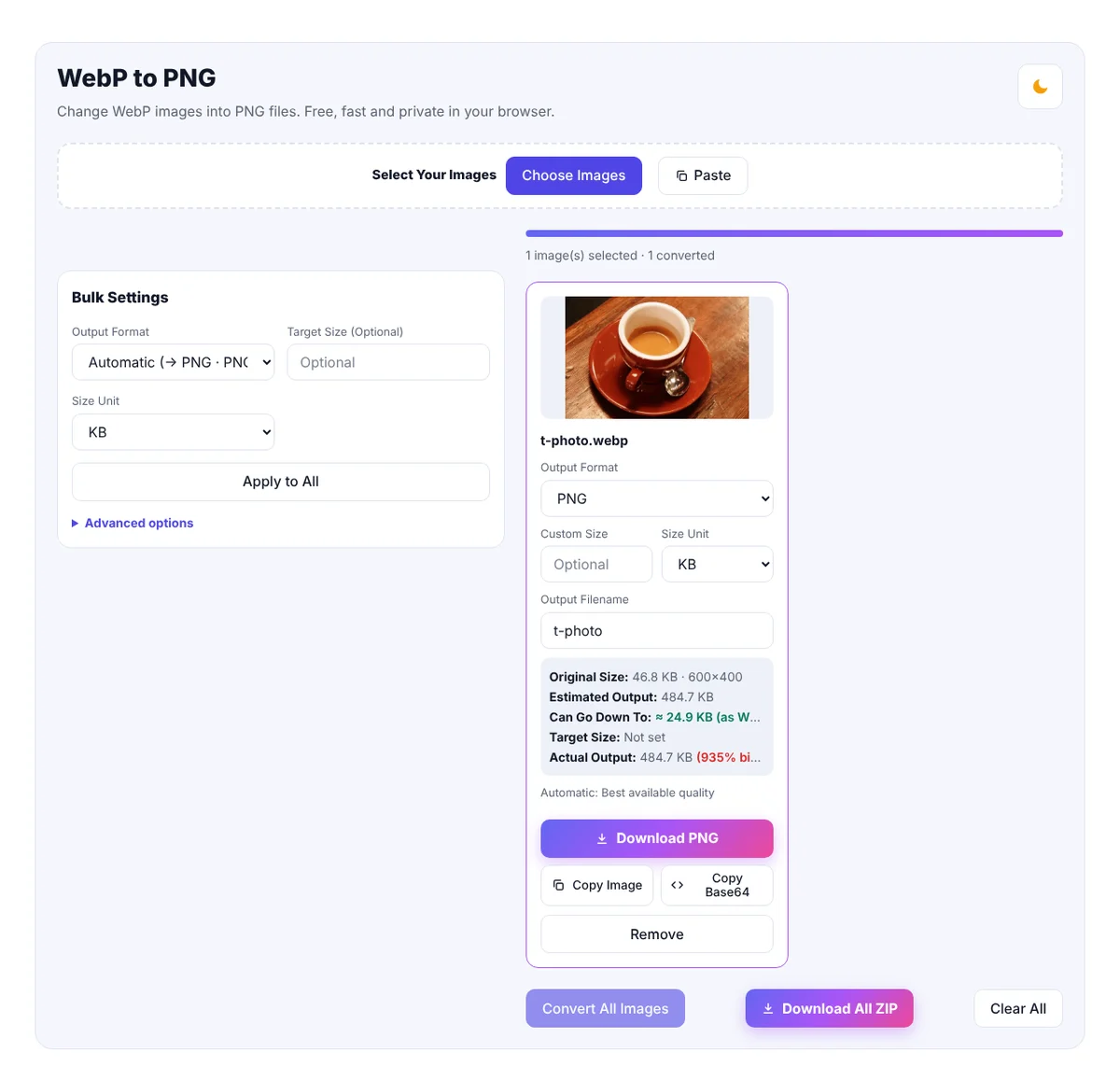
Batch convert as many images as you need, resize if you like, and download everything in a ZIP.
How to use the WebP to PNG Converter
- Choose your WebP files, drag them in, or paste with Ctrl + V. You can add many at once.
- Transparency is kept. Open Advanced options to resize or fill transparent parts with a colour.
- Press “Convert All Images”. Each card shows the new size and how much smaller or bigger the file became.
- Download each file, or press “Download All ZIP” to get every PNG in one go.
Features
- Transparency keptStickers, logos and cut-outs stay see-through.
- Edit without more lossPNG does not lose quality when re-saved.
- Resize while convertingGive a width, a height or both. Keep the whole picture, fill and crop, fit inside, or stretch.
- Easy to add filesDrag and drop, paste with Ctrl + V, or paste an image link.
- Many files at onceAdd a whole folder of images, convert them together and download one ZIP.
- Private by designThe conversion runs in your browser. Your images are never uploaded to a server.
Good to know about file size
PNG stores every pixel, so photos become much bigger: our 47 KB WebP photo became 485 KB as PNG. That is normal. For photos you only need to view or share, WebP to JPG gives smaller files.
Common uses
Opening WebP stickers and logos in Photoshop, Canva or PowerPoint, keeping cut-out product photos transparent, and archiving images in a widely supported format.
Frequently asked questions
Is transparency kept?
Yes, transparent areas stay transparent.
Why is the PNG so large?
PNG is lossless. Use JPG if you need a small photo.
Can I open the PNG in Photoshop or Canva?
Yes. PNG works in every major design app.
Can I convert in bulk?
Yes, with one ZIP download.
Is it free?
Yes, free with no watermark.