
Was this tool helpful?
Thanks for your feedback!
Image Border Maker – Add a Frame to Photos
Add a border to your photos: solid, double, dashed, dotted or a Polaroid-style frame. Choose any colour and width, and add rounded corners if you like.
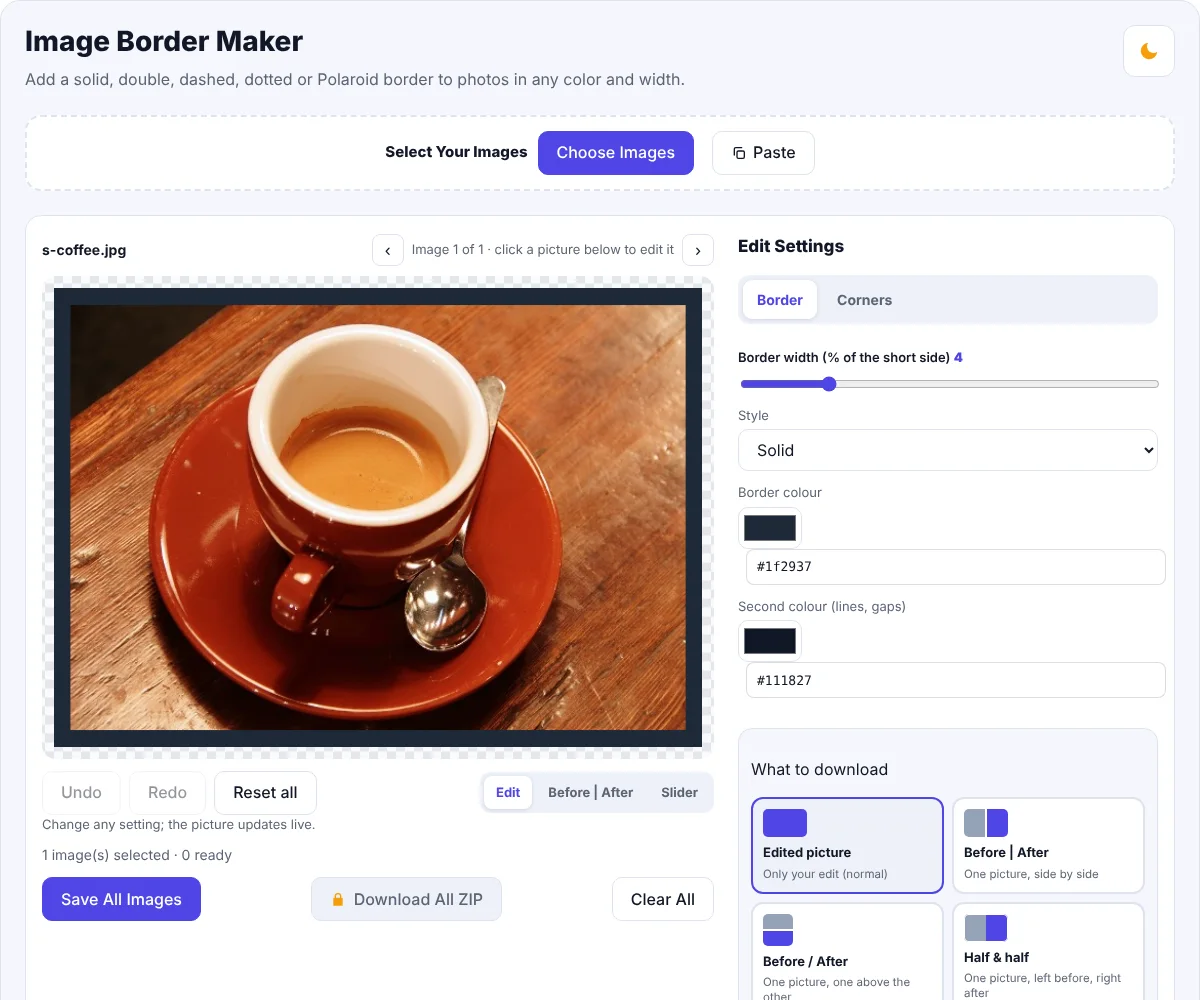
Borders make photos stand out on white pages, give a clean look to product shots, and add a classic print feel.
How to add a border to an image
- Choose your photos, drag them in, or paste with Ctrl + V.
- Choose the border style, colour and width. Round the corners if you want.
- See the frame live on the picture.
- Press “Save All Images” and download the picture, or “Download All ZIP” for several.
Features
- 5 stylesSolid, double, dashed, dotted and Polaroid.
- Any colour and widthHEX, RGB or picker.
- Rounded cornersCombine with a border.
- Any formatJPG, PNG, WebP, AVIF, HEIC and more in; same format or JPG, PNG, WebP or AVIF out.
- Live previewThe picture updates as you move each slider.
- Undo and redoTry anything; go back a step at any time, or Reset all.
- Before and afterCompare with a side-by-side view or a slider.
- Many photos at onceThe same edit is used on every photo you add; download them all in one ZIP.
- PrivatePhotos are edited in your browser. Nothing is uploaded to a server.
Ideas
- White Polaroid frame for memories and gifts.
- Thin grey line to separate product photos from a white page.
- Thick colour border in your brand colour for social posts.
Frequently asked questions
How do I add a border to a picture?
Choose a style, colour and width, then save.
Does the border change the size?
Yes, it is added around the outside.
Can I add a border to many photos?
Yes.
Can I make a Polaroid frame?
Yes.
Is it free?
Yes.