
Was this tool helpful?
Thanks for your feedback!
Add Shapes to Image – Arrows, Boxes and Highlights
Add arrows, boxes, circles, lines, highlights, stars, hearts, triangles and numbered markers to images. Perfect for marking up screenshots, tutorials, bug reports and maps.
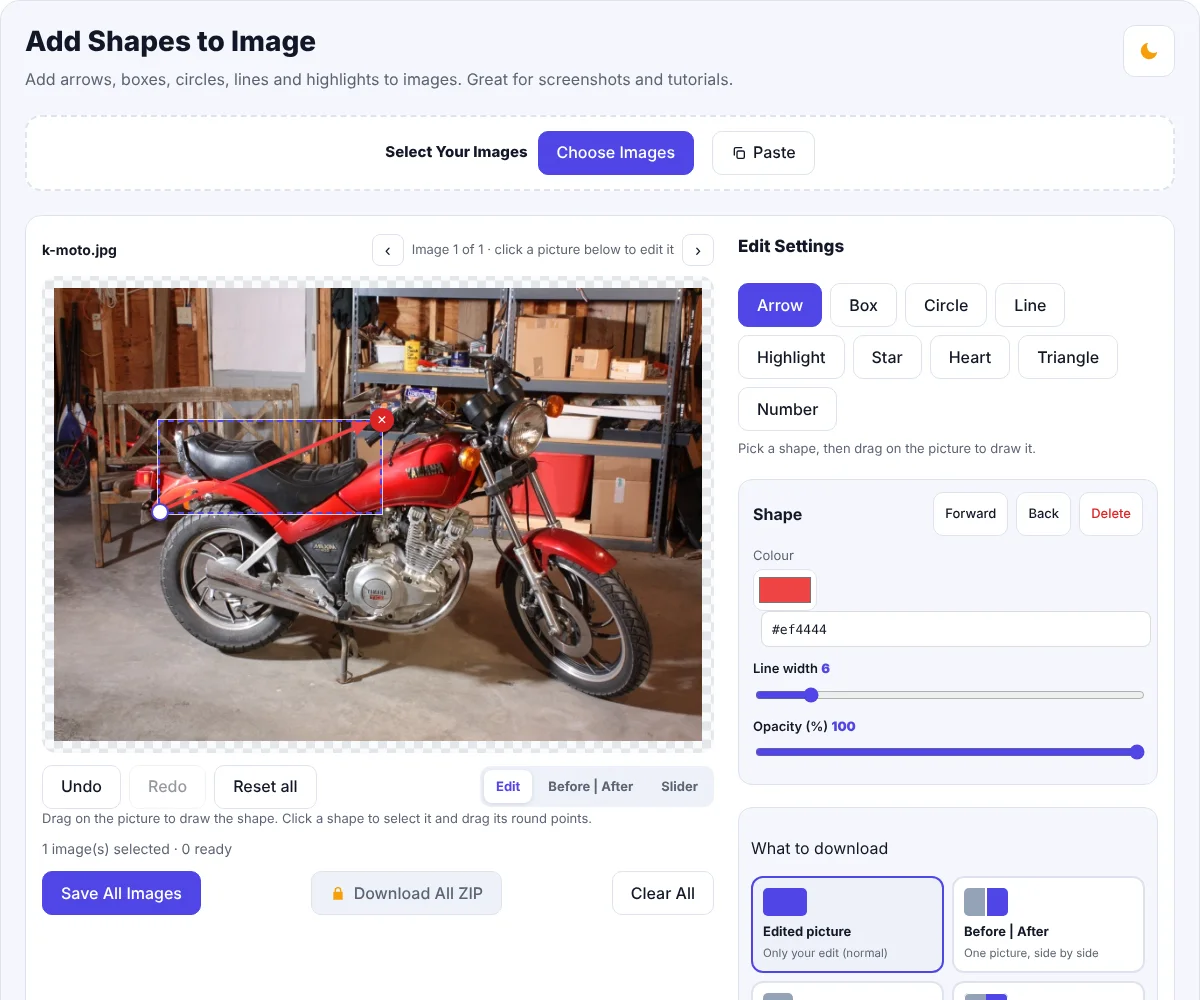
Choose colours, line thickness and fill, then move and resize each shape.
How to add shapes to an image
- Choose your photos, drag them in, or paste with Ctrl + V.
- Pick a shape (Arrow, Box, Circle, Line, Highlight, Star, Heart, Triangle or Number).
- Drag to place it, resize with the handles, and pick the colour and thickness.
- Press “Save All Images” and download the picture, or “Download All ZIP” for several.
Features
- 9 shapesArrow, box, circle, line, highlight, star, heart, triangle and numbers.
- Colour, line and fillOutline or filled.
- Drag, resize, turnMove items on the picture, resize with the round handle and turn with the top handle.
- Any formatJPG, PNG, WebP, AVIF, HEIC and more in; same format or JPG, PNG, WebP or AVIF out.
- Live previewThe picture updates as you move each slider.
- Undo and redoTry anything; go back a step at any time, or Reset all.
- Before and afterCompare with a side-by-side view or a slider.
- Many photos at onceThe same edit is used on every photo you add; download them all in one ZIP.
- PrivatePhotos are edited in your browser. Nothing is uploaded to a server.
Screenshot tips
- Use one bright colour (red or orange) for all marks.
- Number the steps with the Number shape.
- Use Highlight for text, boxes for buttons, arrows to point.
- Hide private details with a filled box or the Blur Tool.
Frequently asked questions
How do I add an arrow to a picture?
Choose Arrow, draw or drag it into place, and save.
Can I change the colour?
Yes.
Can I number steps?
Yes, with the Number shape.
Can I move a shape later?
Yes, until you save.
Is it free?
Yes.