
Was this tool helpful?
Thanks for your feedback!
Image Colour Inverter – Make a Negative Online
Invert the colours of an image to make a negative: black becomes white, blue becomes yellow. You can also invert only the red, green or blue channel for creative effects.
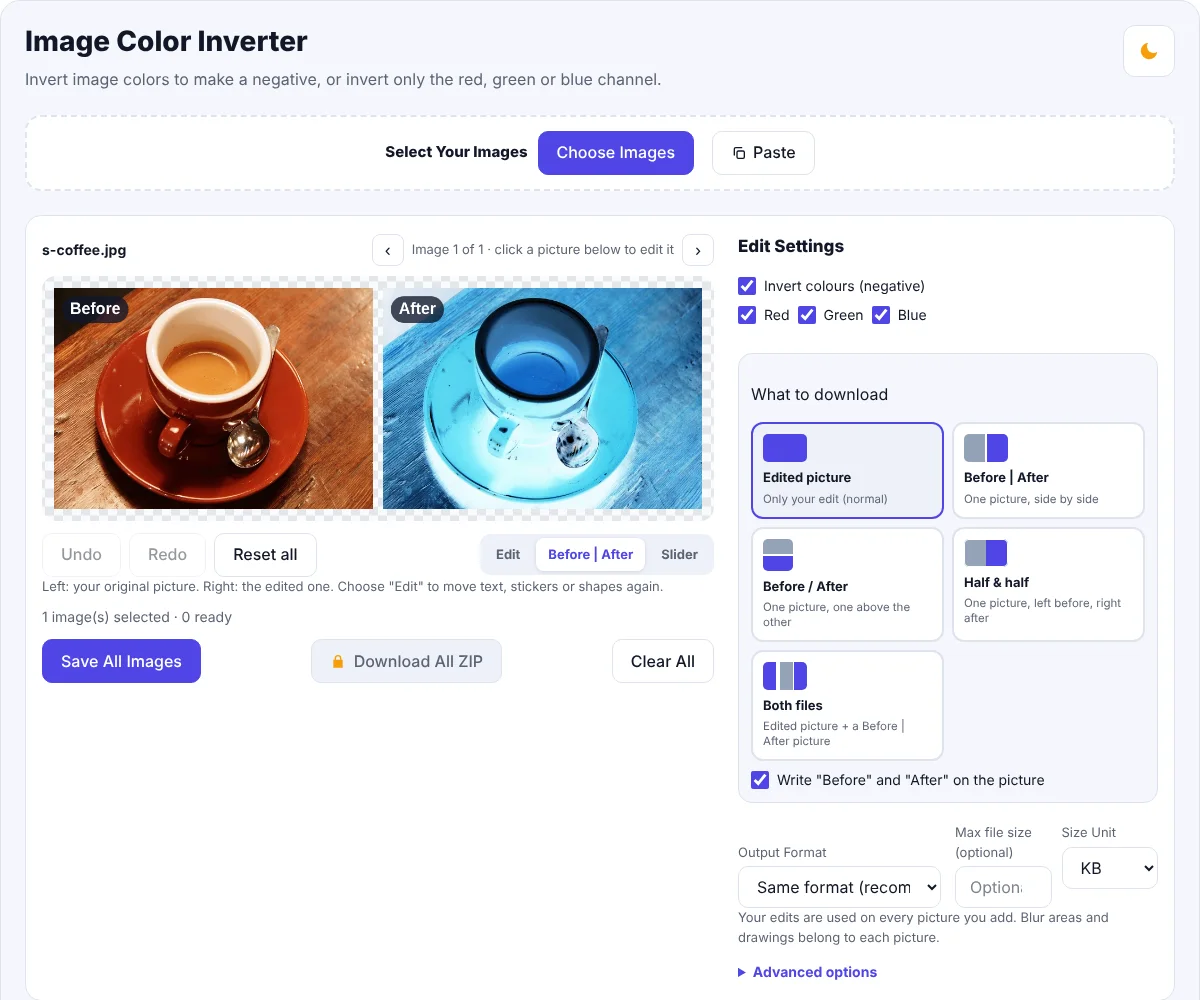
Useful for turning dark screenshots light, checking scanned film negatives, and art projects.
How to invert image colours
- Choose your photos, drag them in, or paste with Ctrl + V.
- Full invert is on. Choose a single channel (red, green or blue) for a different effect.
- Use the Before | After or Slider view to compare with the original.
- Press “Save All Images” and download the picture, or “Download All ZIP” for several.
Features
- Full or per channelInvert all colours or just red, green or blue.
- Any formatJPG, PNG, WebP, AVIF, HEIC and more in; same format or JPG, PNG, WebP or AVIF out.
- Live previewThe picture updates as you move each slider.
- Undo and redoTry anything; go back a step at any time, or Reset all.
- Before and afterCompare with a side-by-side view or a slider.
- Many photos at onceThe same edit is used on every photo you add; download them all in one ZIP.
- PrivatePhotos are edited in your browser. Nothing is uploaded to a server.
Uses
- Turn a dark-mode screenshot into a light one for printing.
- Preview scanned film negatives as positives.
- Make bold poster and album-art effects.
Frequently asked questions
How do I invert colours?
Add the image; it is inverted straight away. Save.
Can I invert it back?
Yes, inverting twice gives the original.
Does it keep transparency?
Yes, with PNG or WebP.
Can I invert many images?
Yes.
Is it free?
Yes.