
Thanks for your feedback!
All Image Resizer Tools
Resize
Exact size
Social media
- Social Media Image ResizerRight size for every social app.
- IGInstagram Image ResizerPosts, stories, reels and profile.
- YTYouTube Thumbnail Resizer1280 × 720 thumbnails under 2 MB.
- FBFacebook Cover Photo ResizerPerfect Facebook cover and post sizes.
- WAWhatsApp DP ResizerDP that fits the WhatsApp circle.
- DPProfile Picture ResizerProfile pictures for every app.
Photo & signature
No tool matches your search.
Free Image Resizer – Resize Photos in Pixels, Percent, cm or Inches
Resize JPG, PNG, WebP, GIF, HEIC and other images to the exact size you need. Type a width and height in pixels, scale by percent, or set a print size in centimetres or inches with the DPI you want.
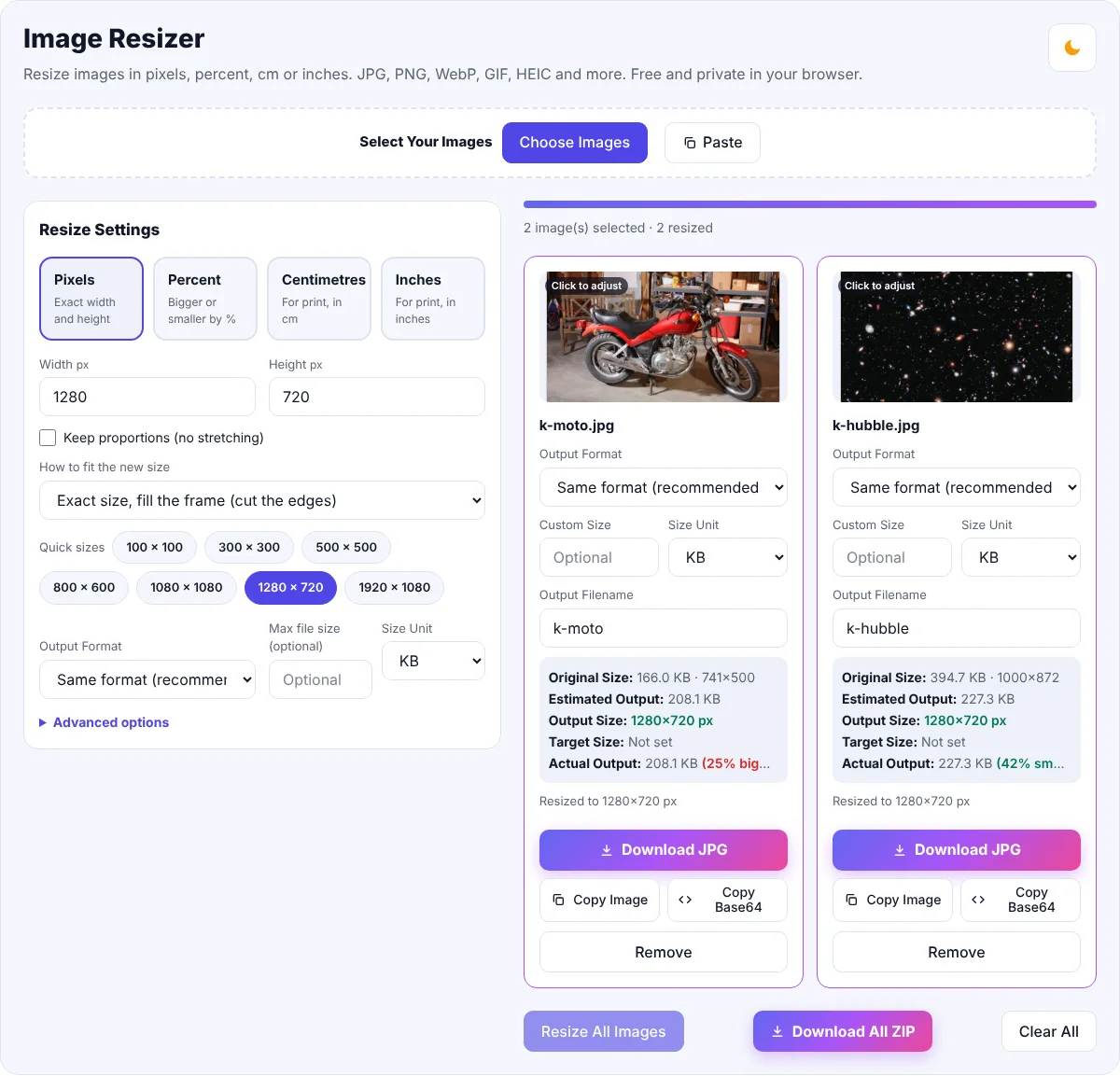
Quick sizes such as 1080 × 1080, 1280 × 720 and 1920 × 1080 are one click away, and you can also set a maximum file size in KB. Everything runs in your browser, so your photos stay on your device.
How to use the Image Resizer
- Choose your images, drag them in, or paste with Ctrl + V.
- Pick Pixels, Percent, Centimetres or Inches, then type the size or click a quick size.
- Press “Resize All Images”. Each card shows the new size in pixels and the new file size.
- Click a result to adjust it if needed, then download it or press “Download All ZIP”.
Features
- Four ways to sizePixels, percent, centimetres and inches, with DPI for printing.
- Quick sizes100 × 100 up to 1920 × 1080 in one click.
- Keep proportionsTick the box and the height follows the width, so nothing looks squashed.
- Fit without stretchingFill the frame and cut the edges, fit inside with a background, or stretch if you really want to.
- File size limitType a maximum size in KB or MB and the tool makes the file fit.
- Choose the formatKeep the same format or save as JPG, PNG, WebP or AVIF.
- Batch and ZIPResize many images together and download them all in one ZIP.
- PrivateImages are resized in your browser. Nothing is uploaded to a server.
Which size should I use?
| Use | Good size |
|---|---|
| Website or blog image | 1200–1600 px wide |
| Instagram square post | 1080 × 1080 px |
| YouTube thumbnail | 1280 × 720 px |
| Full HD wallpaper or slide | 1920 × 1080 px |
| Email attachment | 1000–1600 px wide |
| Print at 15 × 10 cm | 1772 × 1181 px at 300 DPI |
Making an image bigger
You can enlarge a picture, but resizing cannot add detail that was never there, so a small photo made much bigger looks soft. For a sharper result, use the AI Image Upscaler.
Resize or crop?
Resizing changes the number of pixels but keeps the whole picture. Cropping cuts parts away. If you need a different shape, such as square from a wide photo, choose “fill the frame” here or use the Image Cropper for full control.
Frequently asked questions
How do I resize an image without losing quality?
Make it smaller rather than bigger, keep proportions on, and save as PNG or high-quality JPG. Shrinking a photo keeps it sharp.
Can I resize to an exact size in pixels?
Yes. Type the width and height, untick Keep proportions if both must be exact, and pick how to fit the picture.
Can I resize in cm or inches?
Yes. Choose Centimetres or Inches and set the DPI. 300 DPI is standard for printing.
Can I resize many images at once?
Yes. Add them all, press Resize All Images and download a ZIP.
Which formats work?
JPG, PNG, WebP, AVIF, GIF, HEIC, BMP and TIFF.
Are my photos uploaded?
No. Resizing happens in your browser.