
Was this tool helpful?
Thanks for your feedback!
QR Code Scanner – Scan QR Codes from Images or Camera
Read QR codes from a picture, a screenshot or your camera. Links, Wi-Fi details, contact cards, events and plain text are shown clearly, with buttons to open, copy or save them.
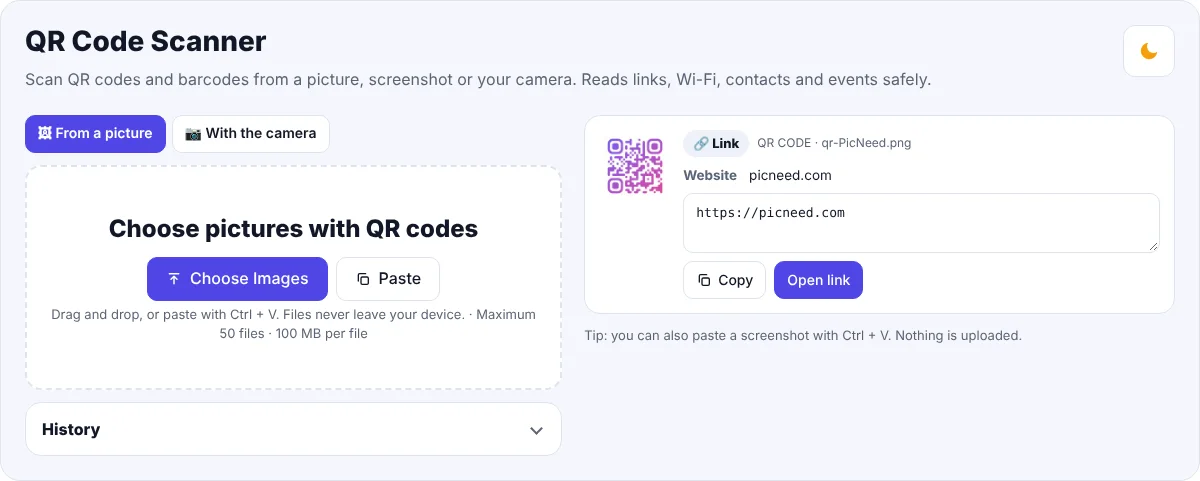
It reads styled QR codes with logos, and blurry or tilted photos too. Every scan is kept in a history you can export as CSV.
How to scan a QR code from an image
- Choose an image or screenshot with a QR code, paste it, or press the camera button.
- The code is read automatically; several codes in one picture are all found.
- See the result: link, Wi-Fi, contact, event or text.
- Open the link, copy the text, or save the contact; export your history as CSV.
Features
- Image or cameraScan files, screenshots or live camera.
- Tough codesBlurry, tilted, logo and styled QR codes.
- Smart resultsWi-Fi, vCard contacts, events, links and text.
- HistoryKeep scans and export CSV.
- Paste or dropDrag files in, or paste with Ctrl + V.
- PrivateEverything happens in your browser. Nothing is uploaded to a server.
Scan safely
Before opening a link from a QR code, check the address shown. Be careful with codes on parking meters, posters and unexpected emails or letters; scammers sometimes stick fake codes over real ones.
Frequently asked questions
How do I scan a QR code from a picture?
Add the picture or screenshot; the code is read straight away.
Can I scan with my laptop camera?
Yes, press the camera button and allow access.
Does it read Wi-Fi QR codes?
Yes, it shows the network and password.
Is the image uploaded?
No.
Is it free?
Yes.