
Thanks for your feedback!
Photo Mosaic Generator – Make a Picture from Your Photos
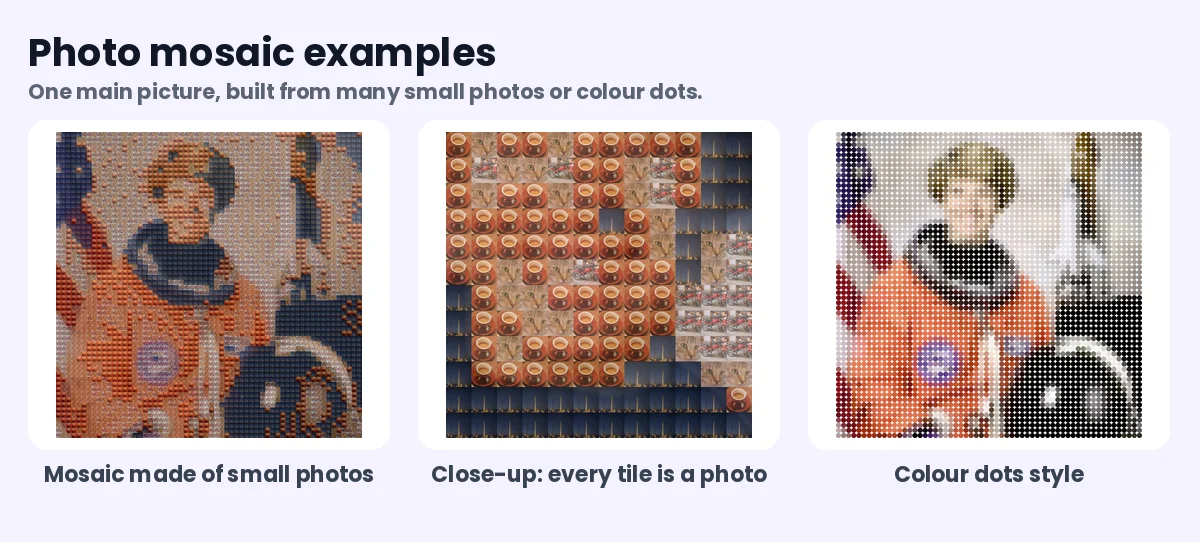
Turn one picture into a mosaic made of many small photos. Choose a main picture, add your tile photos, and the tool places each small photo where its colours match the big picture best. From a distance you see the main picture; up close, every tile is a memory.
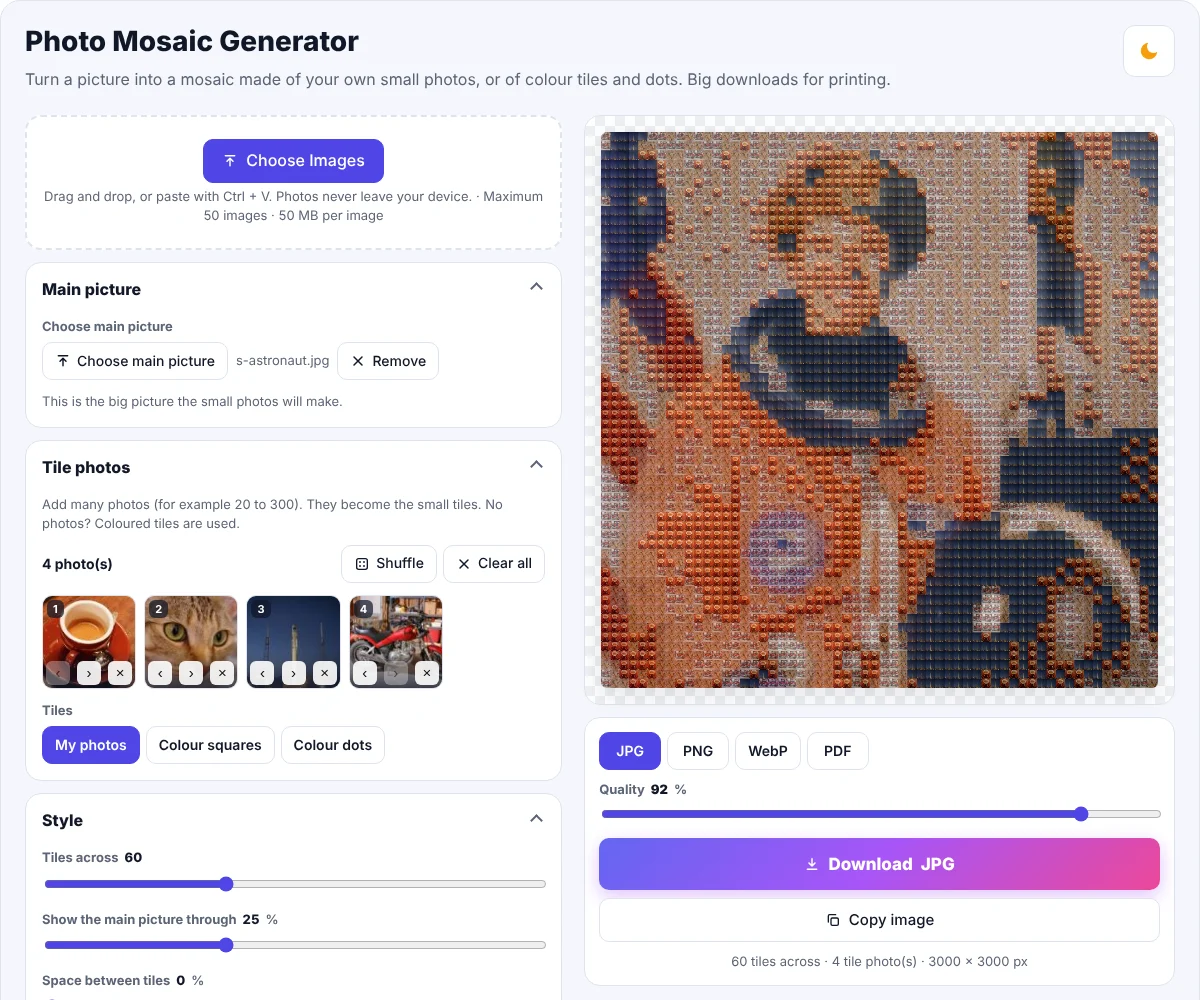
No tile photos? Choose colour squares or colour dots instead for a pop-art or LEGO-style look. Downloads can be very large, so you can print your mosaic as a poster.
How to use the Photo Mosaic Generator
- Choose the main picture: the photo the mosaic will show.
- Add tile photos (the more the better, ideally 20 to 300), or pick colour squares or colour dots.
- Set how many tiles go across, the tile shape, the space between tiles and how much of the main picture shows through.
- Choose the download width and download JPG, PNG, WebP or PDF.
Features
- Your own photos as tilesEach tile is chosen by colour so the mosaic matches the main picture.
- Colour tiles and dotsMake a mosaic without tile photos: square colour blocks or round dots.
- Round or square tilesPlus adjustable space between tiles.
- Blend controlLet a little of the main picture show through to make the image clearer from far away.
- Large print sizesSet a large download width for posters and canvas prints.
- PrivateEverything happens in your browser; your photos are not uploaded.
How to get a great-looking mosaic
- Use a simple main picture with a clear subject and strong light, such as a face or a pet.
- Add many tile photos with different colours. 50 or more works well; 20 is the minimum for a nice result.
- More tiles across = clearer picture, but each tile becomes smaller. Try 60 to 100 across.
- Blend 20–30% makes the main picture easier to see without hiding the tiles.
Ideas for photo mosaics
A wedding or anniversary gift made from years of photos, a team picture made from everyone’s snapshots, a pet portrait made from its own photos, or a school leavers’ poster.
Printing tips
For a 50 × 50 cm print at good quality, set the download width to around 6,000 px and save as JPG or PDF. Use the Print Size Calculator to check the size for your paper.
Frequently asked questions
How many tile photos do I need?
At least 20, but 50 or more gives a much better result because the tool has more colours to choose from.
Can I make a mosaic without tile photos?
Yes. Choose “Colour squares” or “Colour dots” and only add the main picture.
Can I print my mosaic?
Yes. Set a large download width, then download JPG or PDF for printing.
Why can I not see the main picture clearly?
Add more tiles across, add more varied tile photos, or raise the “Show the main picture through” setting.
Are my photos uploaded?
No. The mosaic is built in your browser.