
Was this tool helpful?
Thanks for your feedback!
PDF to PNG – Convert PDF Pages to PNG Images
Turn every page of a PDF into a PNG image, or just the pages you choose. Set the quality from 72 DPI for screens to 600 DPI for print, and download one file per page in a ZIP, or all pages as one tall image.
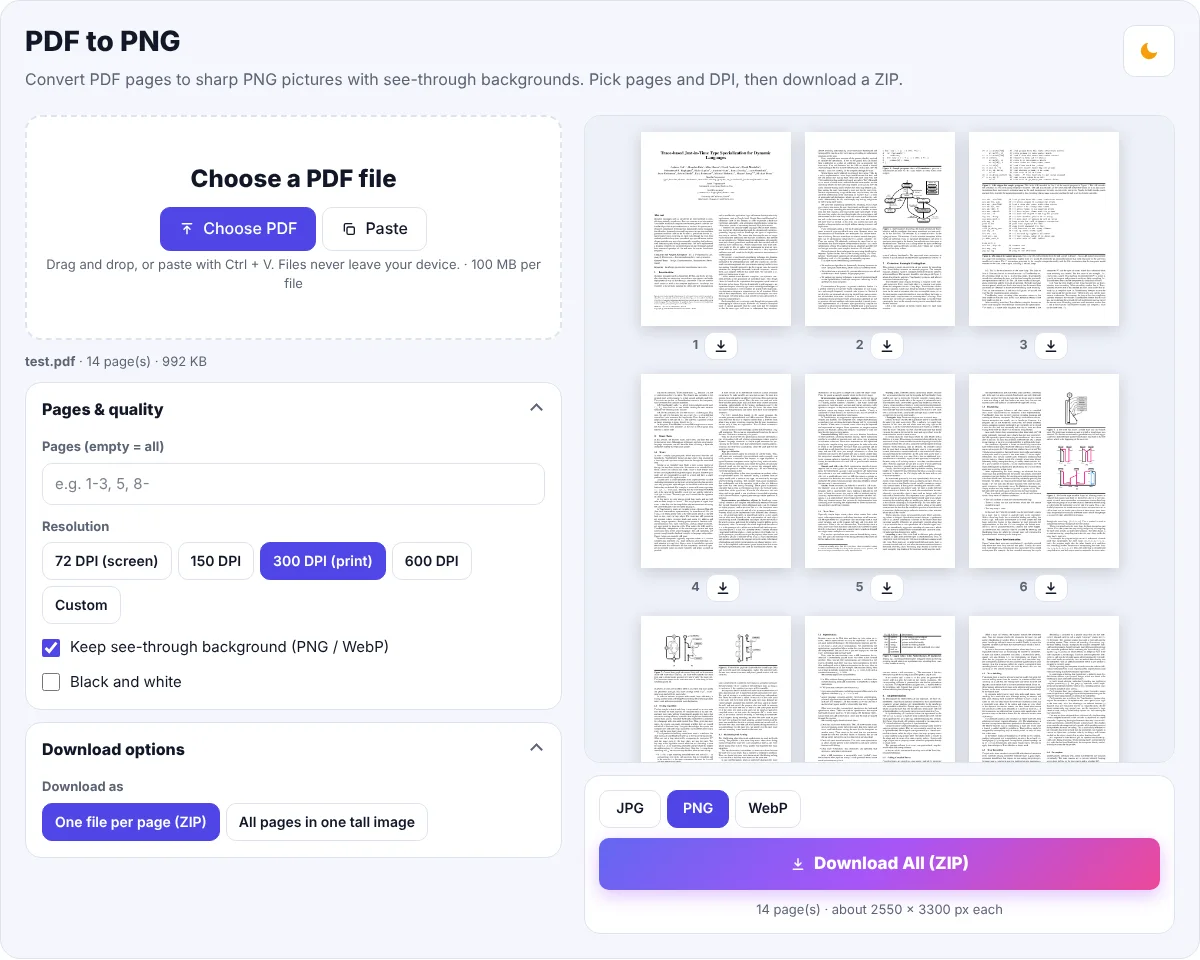
PNG keeps text and lines perfectly sharp and can have a transparent background, which is ideal for diagrams, logos and pages you will place in designs.
How to convert PDF to PNG
- Choose your PDF, drag it in, or paste it. Enter the password if it is protected.
- Pick the DPI (72, 150, 300, 600 or custom) and the pages, such as 1-3, 5.
- Choose one file per page or one tall image.
- Press “Download All (ZIP)”.
Features
- Any DPI72 to 600 or custom.
- Page rangeAll pages or just some.
- Password PDFsOpen protected files you have the password for.
- One tall imageAll pages stacked, for sharing.
- Transparent backgroundOptional, for diagrams and logos.
- Paste or dropDrag files in, or paste with Ctrl + V.
- PrivateEverything happens in your browser. Nothing is uploaded to a server.
Which DPI should I use?
| DPI | Use |
|---|---|
| 72–96 | Quick previews, chat |
| 150 | Websites, slides, email |
| 300 | Printing and clear text |
| 600 | Fine print and archives |
Frequently asked questions
How do I convert a PDF to PNG?
Add the PDF, choose the DPI and download the ZIP.
Can I convert one page only?
Yes, type the page number.
Is my PDF uploaded?
No, it is opened in your browser.
Does it work with large PDFs?
Yes, pages are processed one by one.
Is it free?
Yes.