
Was this tool helpful?
Thanks for your feedback!
Add Sticker to Image – SALE Tags, Badges and Speech Bubbles
Add stickers to photos: SALE and discount tags, NEW and HOT badges, stars, ticks, gift and phone icons, arrows and speech bubbles. Or upload your own PNG sticker.
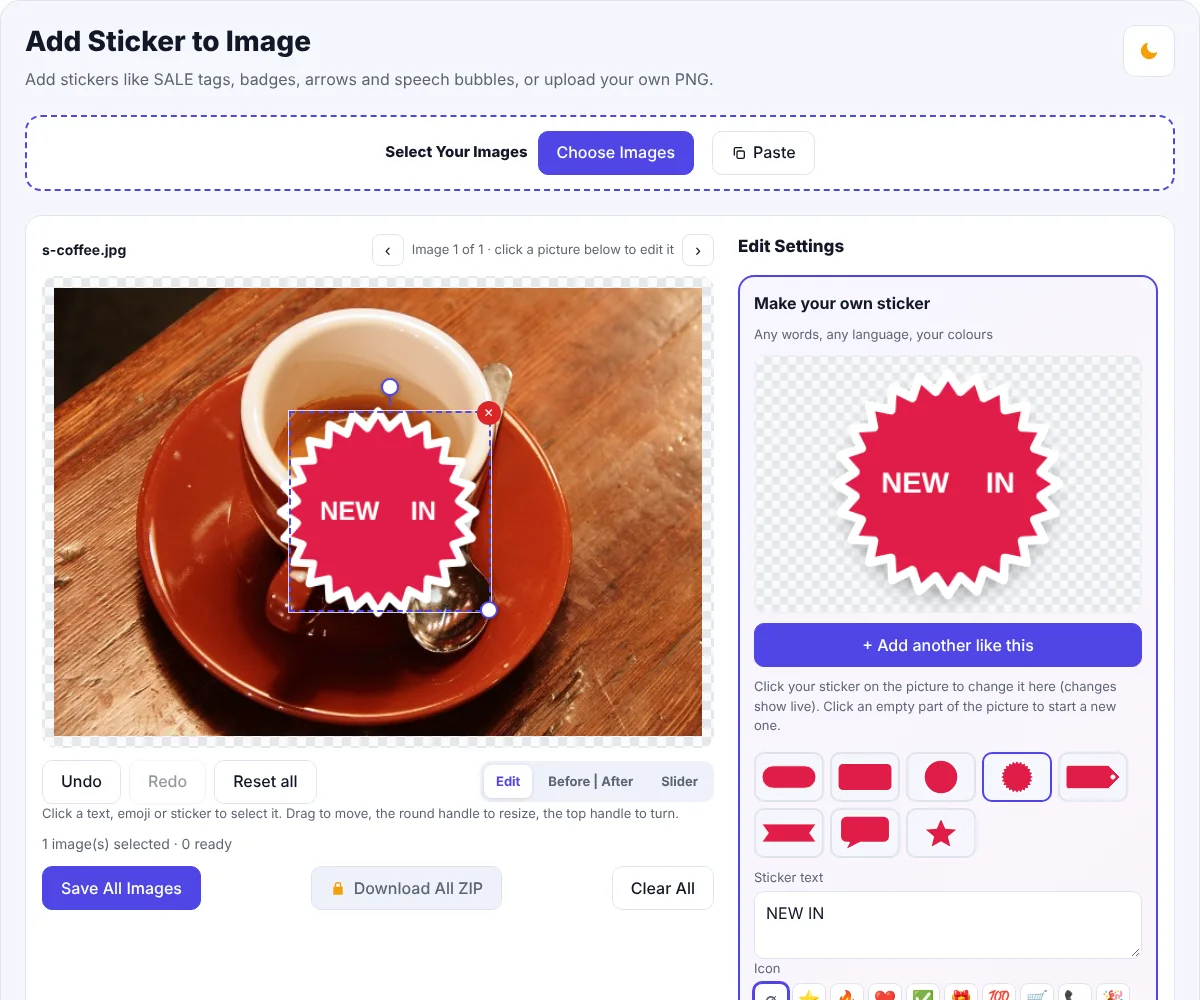
Ideal for shop posts, offers, social media and fun photos. Change the sticker text and colours, then move and resize.
How to add a sticker to a photo
- Choose your photos, drag them in, or paste with Ctrl + V.
- Pick a sticker from Sale & badges or another set, or upload your own PNG.
- Drag to move, use the handles to resize and turn.
- Press “Save All Images” and download the picture, or “Download All ZIP” for several.
Features
- Ready stickersSale tags, badges, icons and bubbles.
- Your own stickersUpload any transparent PNG.
- Edit the textChange “SALE 50%” to your own words.
- Drag, resize, turnMove items on the picture, resize with the round handle and turn with the top handle.
- Any formatJPG, PNG, WebP, AVIF, HEIC and more in; same format or JPG, PNG, WebP or AVIF out.
- Live previewThe picture updates as you move each slider.
- Undo and redoTry anything; go back a step at any time, or Reset all.
- Before and afterCompare with a side-by-side view or a slider.
- Many photos at onceThe same edit is used on every photo you add; download them all in one ZIP.
- PrivatePhotos are edited in your browser. Nothing is uploaded to a server.
Ideas for shops
- Put “NEW” on new arrivals and “−30%” on offers.
- Add a phone or WhatsApp icon with your number.
- Use the same sticker style across all posts so your shop is recognisable.
Frequently asked questions
How do I add a sticker to a photo?
Click a sticker, drag it into place and save.
Can I change the text on a sticker?
Yes.
Can I upload my own?
Yes, PNG works best.
Can I add several?
Yes.
Is it free?
Yes.