
Was this tool helpful?
Thanks for your feedback!
Photo Dehaze Tool – Remove Haze, Fog and Smog
Remove haze, fog and smog from photos and bring back colour, contrast and distance. It uses the dark channel method, a proven technique for clearing atmospheric haze.
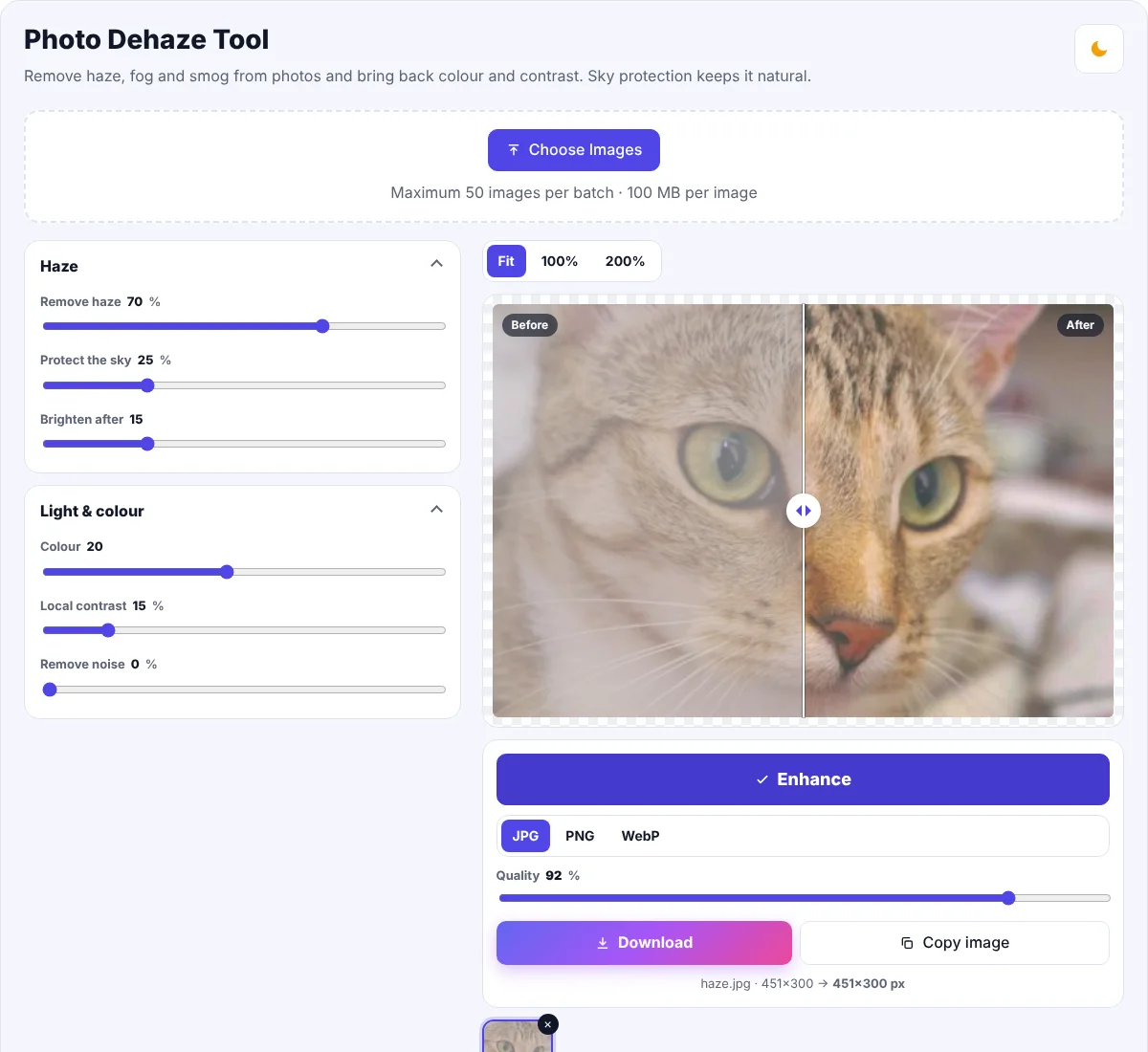
Sky protection keeps bright skies natural, so you get clear landscapes and city shots without dark, patchy skies.
How to dehaze a photo
- Choose your photos, drag them in, or paste with Ctrl + V.
- Set the dehaze strength. Keep Sky protection on for photos with a lot of sky.
- Press “Enhance”, then drag the Before | After slider and zoom in to check the result.
- Pick JPG, PNG or WebP and press Download.
Features
- Haze, fog, smogClears grey veils over distant scenes.
- Sky protectionKeeps skies smooth and natural.
- StrengthLight clean-up to strong clearing.
- Before and afterDrag the slider and zoom to 100% or 200% to check the detail.
- JPG, PNG or WebPChoose the format and quality you need.
- Many photos at onceAdd a batch and download each result.
- PrivateEverything runs in your browser. Photos are never uploaded.
Where it helps
- Mountain and city views on hazy days.
- Photos taken through dirty or misty windows.
- Drone and aerial shots.
- Underwater photos with a blue-green haze.
Frequently asked questions
How do I remove haze from a photo?
Add it, set the strength, press Enhance and download.
Will it remove fog completely?
Light and medium haze yes; thick fog partly.
Why is my sky dark?
Turn on Sky protection or lower the strength.
Is it free?
Yes.
Is it private?
Yes.