
Was this tool helpful?
Thanks for your feedback!
HEIC to PNG Converter – iPhone Photos as PNG
Convert iPhone HEIC photos to PNG for editing, design work or when an app needs PNG. PNG keeps every pixel, so it is a good master copy before you edit.
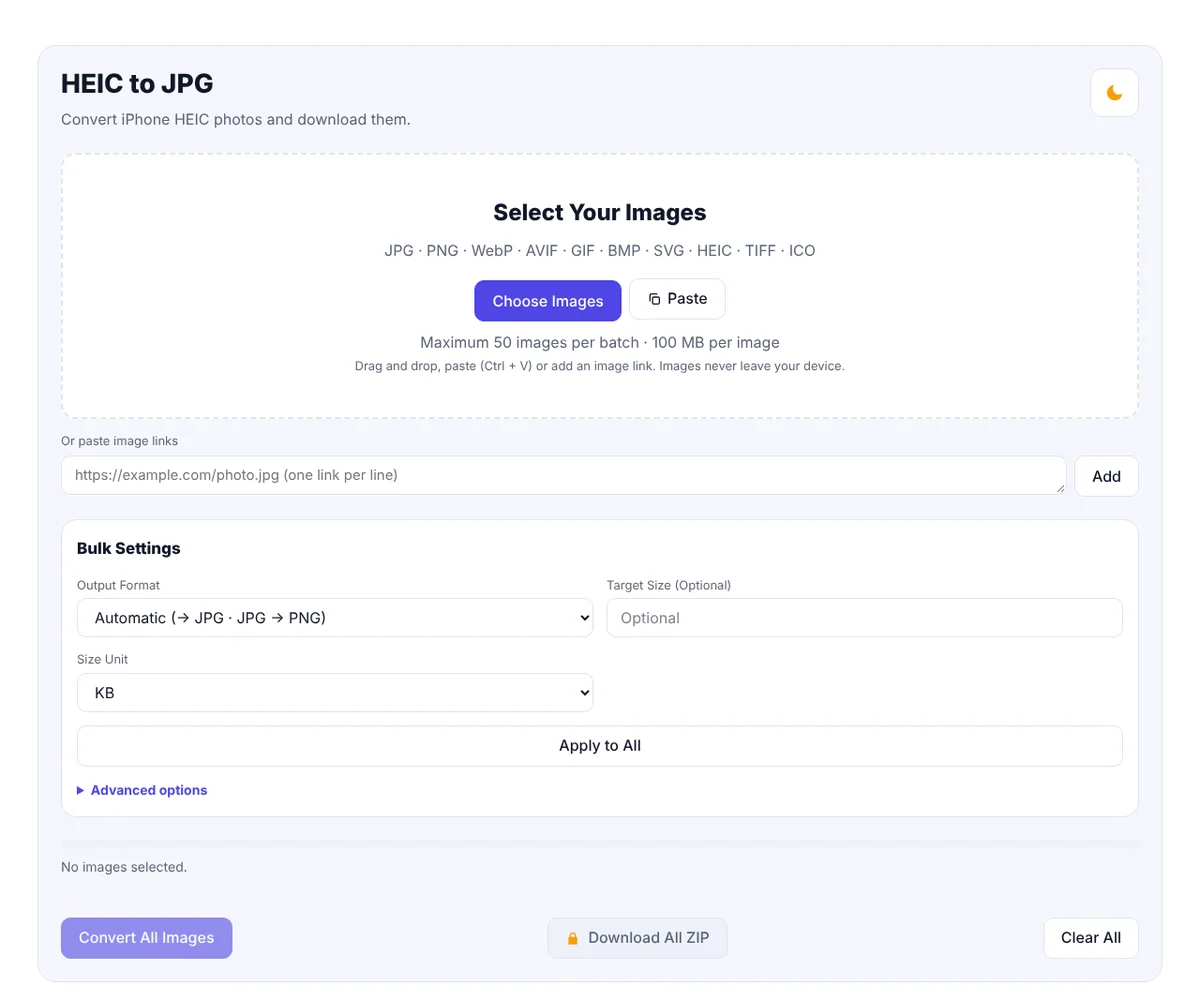
Convert a batch at once and download a ZIP. Everything runs in your browser, so your personal photos stay private.
How to use the HEIC to PNG Converter
- Choose your HEIC files, drag them in, or paste with Ctrl + V. You can add many at once.
- Resize in Advanced options if the photos are larger than you need.
- Press “Convert All Images”. Each card shows the new size and how much smaller or bigger the file became.
- Download each file, or press “Download All ZIP” to get every PNG in one go.
Features
- Lossless outputNo extra quality loss when you edit and re-save.
- Resize while convertingGive a width, a height or both. Keep the whole picture, fill and crop, fit inside, or stretch.
- Location data removedHidden photo data such as EXIF and GPS location is removed from the new file.
- Easy to add filesDrag and drop, paste with Ctrl + V, or paste an image link.
- Many files at onceAdd a whole folder of images, convert them together and download one ZIP.
- Private by designThe conversion runs in your browser. Your images are never uploaded to a server.
PNG or JPG for iPhone photos?
PNG is lossless but much larger: a 12-megapixel photo can be 15–25 MB as PNG. For sharing, uploading or emailing, HEIC to JPG is better. Choose PNG when you will edit the photo several times or need a lossless copy.
Frequently asked questions
Why is the PNG so big?
PNG stores every pixel of a high-resolution photo without compression loss.
Is location data removed?
Yes, hidden photo data such as GPS is removed.
Can I convert Live Photos?
The still photo is converted.
Can I convert many at once?
Yes, with a ZIP download.
Is it private?
Yes, nothing is uploaded.